.png) Basic MBOM steps in Sovelia Core
Basic MBOM steps in Sovelia Core
Basic MBOM steps in Sovelia Core
Preparation - MBOM templates
MBOM template(s), reflecting the manufacturing process of the product, are used to create an MBOM related to an existing EBOM. These need to be setup before creating MBOMs.
Multiple templates may be required. If a product is manufactured at multiple sites, the manufacturing process may differ by site. Dedicated templates may also be needed for different product types and for manufacturing individual modules.
In addition to manufacturing phases, templates may include documentation or standard items that should always be associated with a given phase.
Several MBOMs can be created from a single EBOM. For example, this is useful when a product is manufactured at multiple sites with different manufacturing processes.
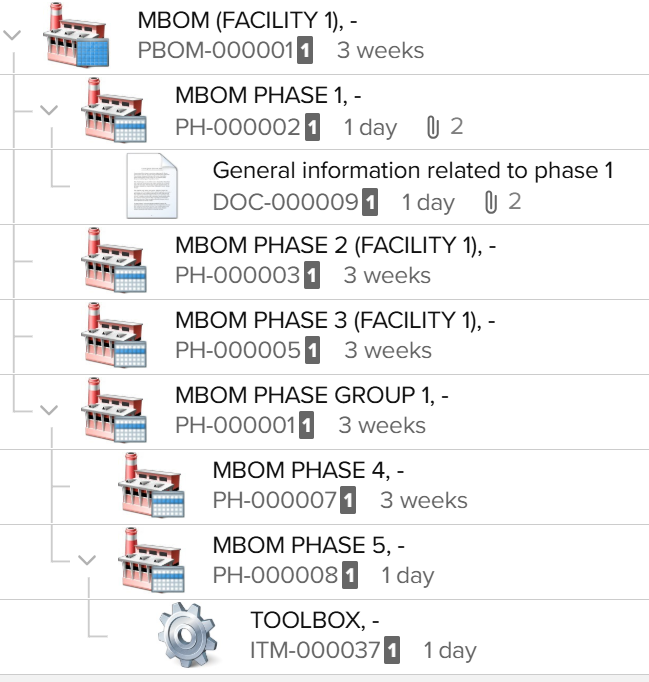 MBOM template example with generalized naming
 Item mapping
The EBOM items are mapped to MBOM phases.
Phase names are defined in the Sovelia dictionary, and item-to-phase mapping is based on these names.
Items can be mapped in different ways. The list below is also the default priority order for mapping rules:
EBOM
Mapping is defined at the EBOM level on item links.
Item
Mapping is defined at the item level and applies wherever the item is used.
Object Type
Mapping is defined generally based on the item type tree.
Phantom-Level Inherited Mapping (Optional)
EBOM items can be set as phantoms, which means that this level is skipped and the phantom's child items are mapped directly to the MBOM. In this case, you can optionally inherit the phantom phase mapping to child items.
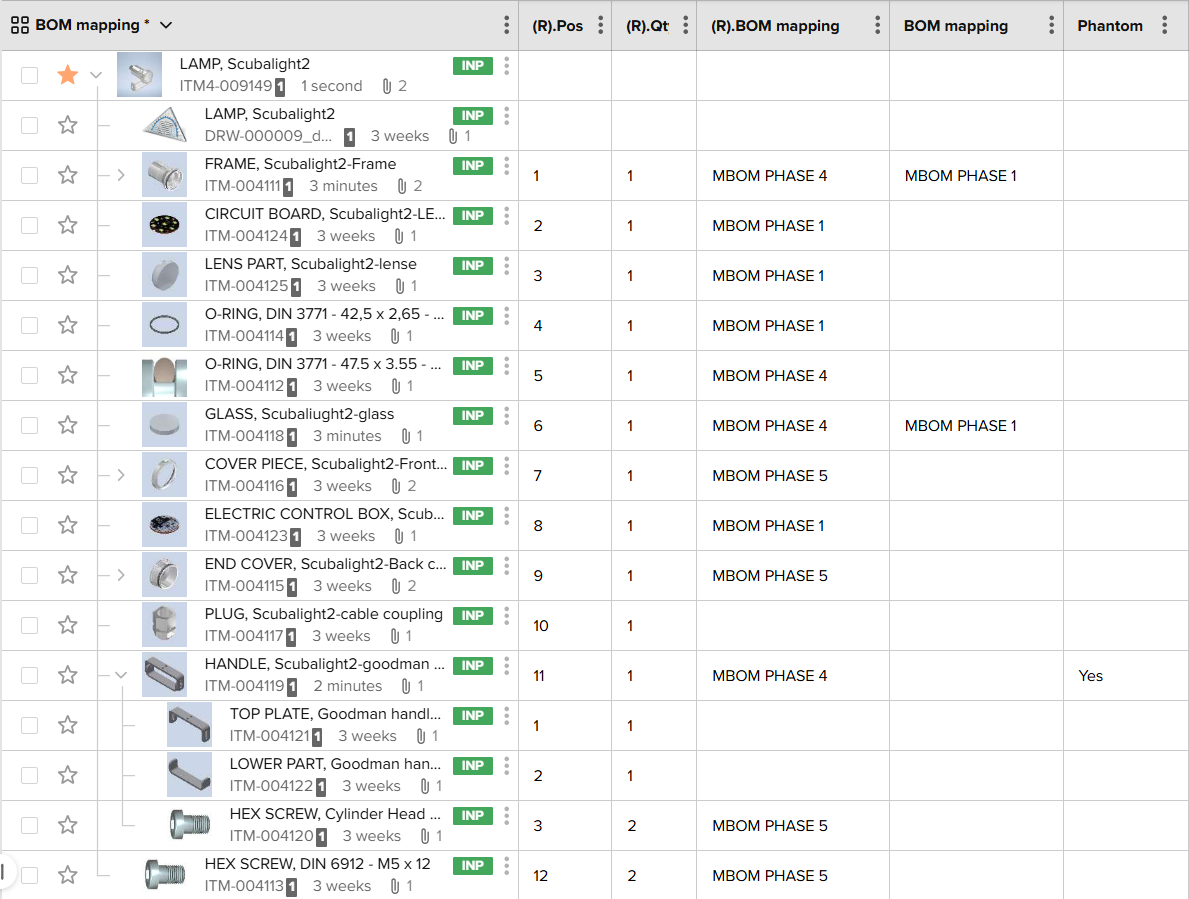 EBOM phase mapping: EBOM level on relation, item level and phantom handling
Creating an MBOM
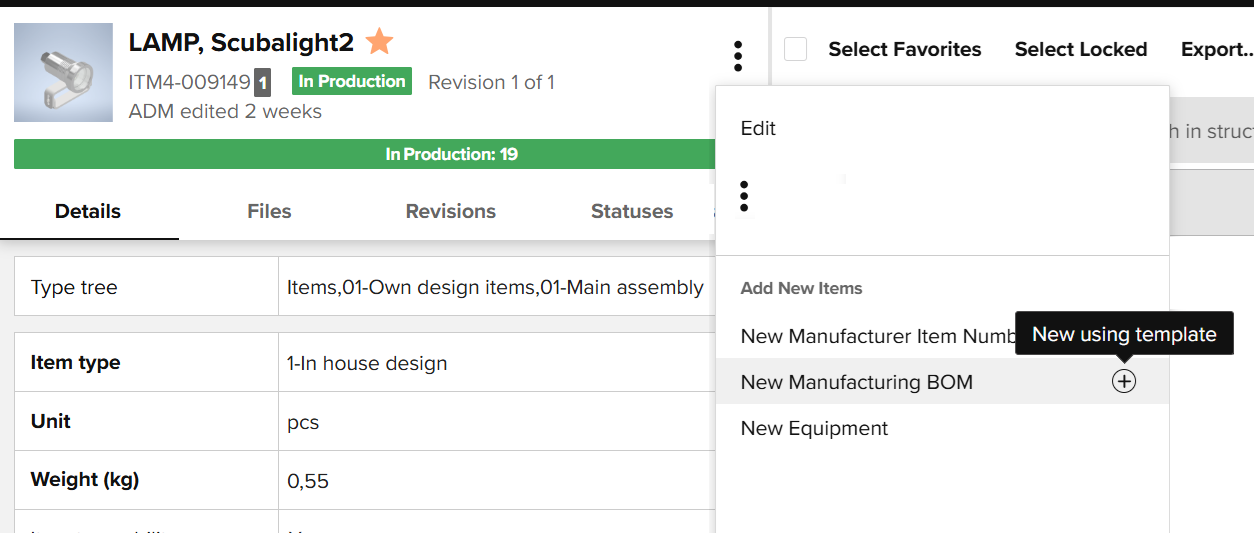
An MBOM is created from the EBOM, and a link is established between them.
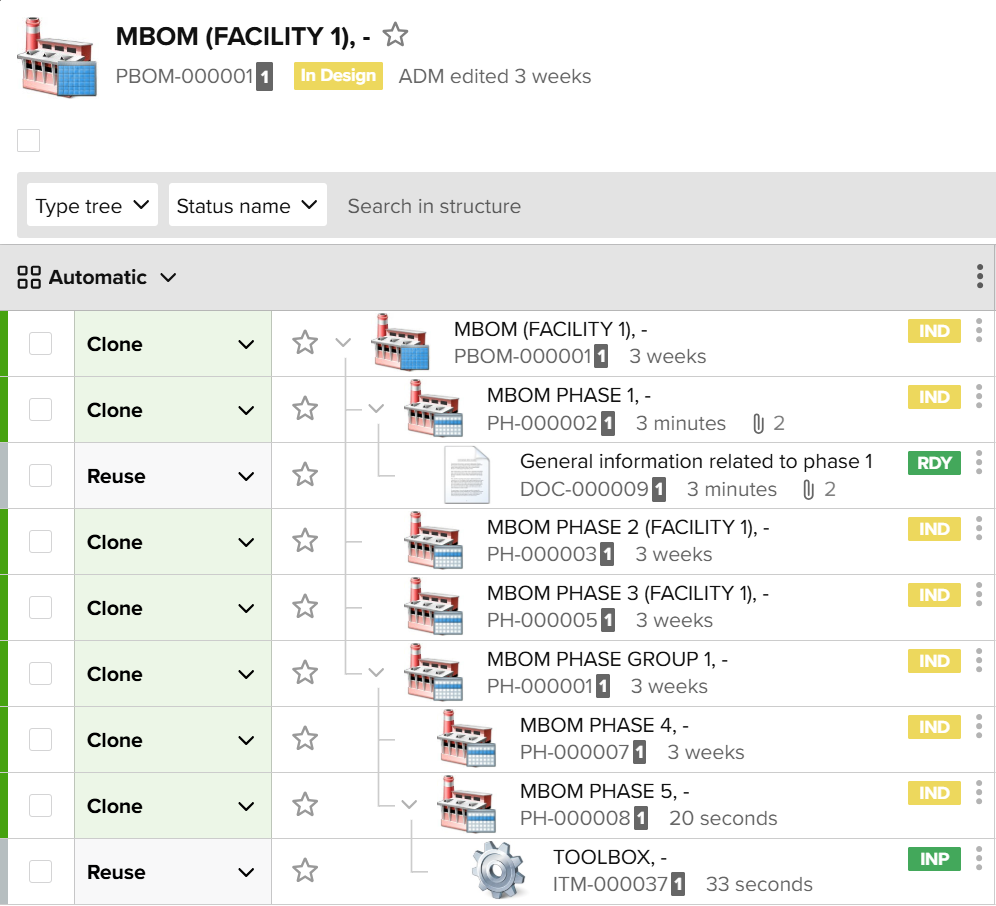
The selected template is opened in the structure copy tool. You have an option to modify the default selections used to copy the template structure.
Available options depend on the object type. For example, an MBOM phase can be cloned or removed. Other objects, such as items and documents, are typically reused by default, but you may also be able to clone them to create MBOM-specific objects.
Default selections and available options are fully configurable.
Completing the MBOM
After creating the MBOM, you can update mapped EBOM items to all MBOM phases or to selected phases.
Items, documents, and other object types, that are not mapped or part of the template, can be linked manually.
The update can be rerun whenever needed. Links created by the mapping process are marked with the "Mapper link" field. Before each update, only these mapper links are removed and recreated according to the current mapping. Manually created links, and links that are part of the original template, remain unchanged.
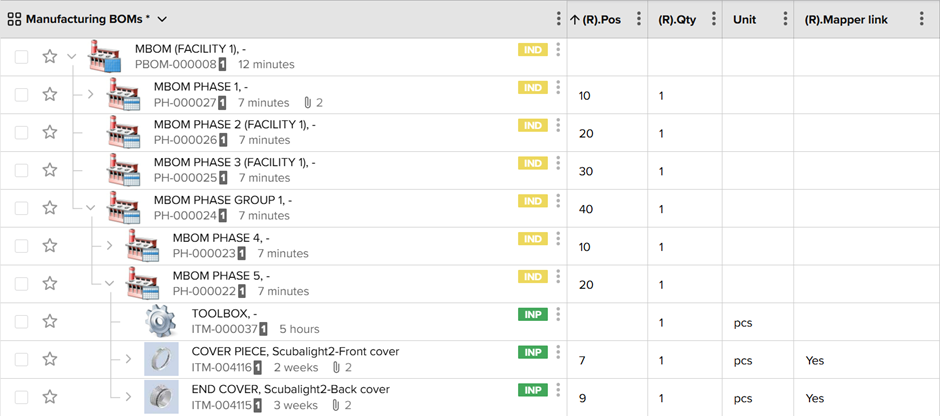 The 'Mapper link column defines which links a subject to updates
Sovelia Core provides information to help validate the complete MBOM or an individual phase.
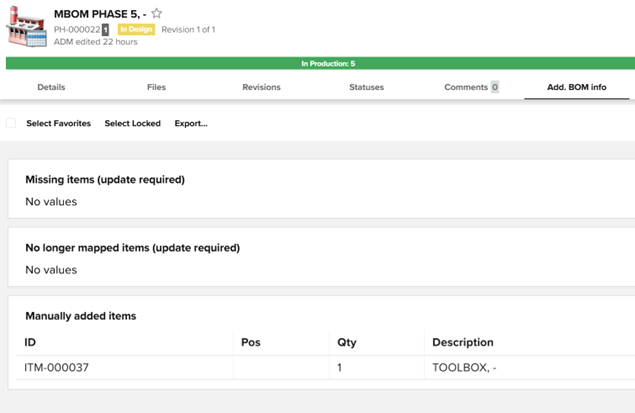 Phase related analytics
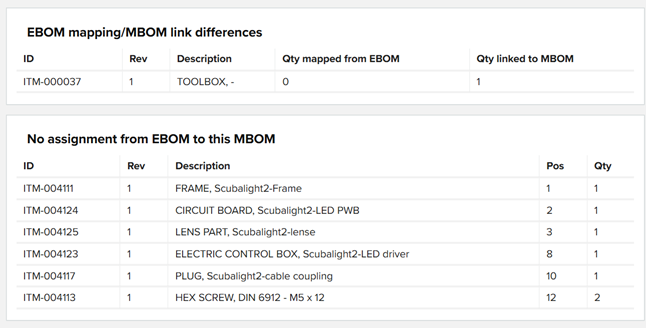 Analytics related to the complete MBOM
Releasing the MBOM
The MBOM and MBOM phases follow a lifecycle similar to normal items. Lifecycle rules are the same, helping ensure that information is sent to the ERP system in the correct order.
In some cases the MBOM is created before the EBOM is finished. For example, manufacturing starts on some areas of a product while other areas are still being designed. Manufacturing phases are individually released and sent to the ERP system. This provides support for parallel product design and manufacturing. Naturally, individual MBOMs can also be used to produce product modules to stock.