AI Assistant overview
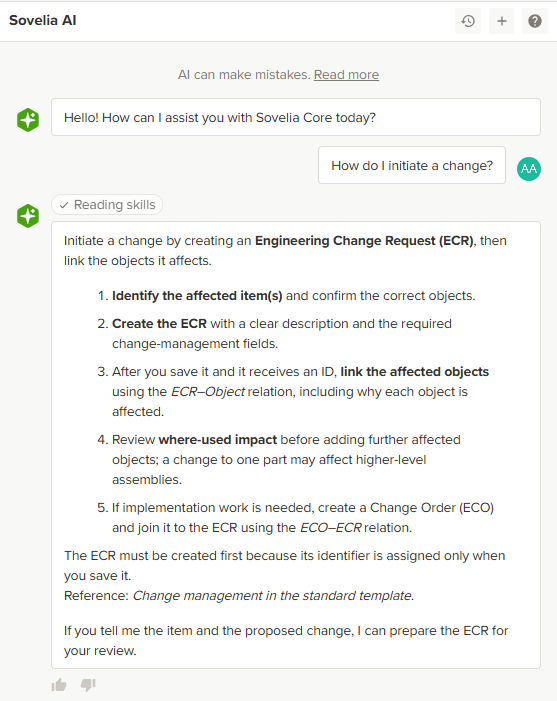
The Sovelia AI Assistant is built directly into Sovelia Core. It answers questions about using Sovelia and your own data (Guide) and can carry out routine tasks on your behalf, such as tagging, creating, or updating records (Act). You review every proposed change before anything is saved.
- Guide — answers questions and explains workflows using Sovelia documentation and any documentation your organization has made available to the Assistant.
- Act — proposes specific changes, such as edits, tags, comments, and links, for you to review and approve before they are applied.
- Skills — let your organization teach the Assistant its terminology and processes so that answers and suggestions reflect how you work.
Accessing the Assistant
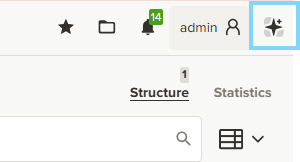
- Select the AI icon in the top right corner of Sovelia Core.
- Enter your question or request in the chat, just as you would message a colleague.
Asking questions (Guide)
Use plain language to ask how something works, where to find something, or what a field or status means in your environment.
Examples:
- "How do I create a new revision?"
- "What does the DRW status mean here?"
- "Where can I see who approved this change request?"
Answers draw on Sovelia documentation and any organizational documentation made available to the Assistant, helping them reflect your Sovelia configuration. If no relevant information is available, the Assistant says so instead of guessing.
Getting things done (Act)
In addition to answering questions, the Assistant can propose actions on your behalf.
- Describe the outcome you want. For example: "Tag all overdue ECRs assigned to me as follow-up."
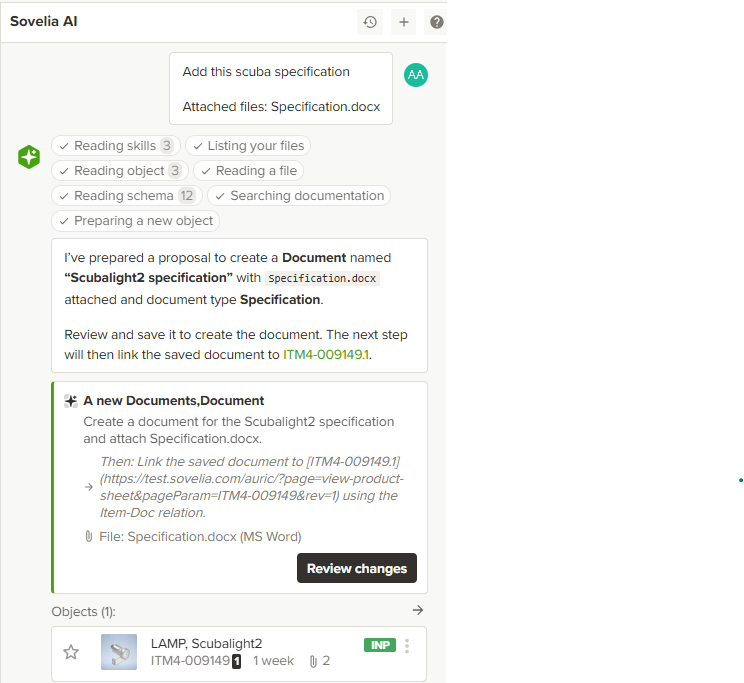
- The Assistant finds the matching items and prepares a proposal showing exactly what it intends to change.
- You review the proposal.
- Approve, modify, or reject the proposal. Nothing is applied until you approve it.
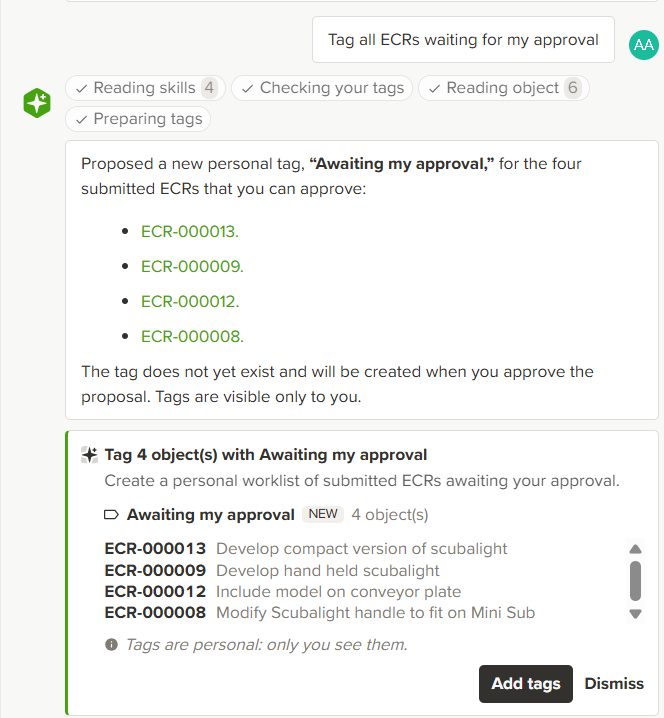
For details about proposals involving multiple items, see Understanding and reviewing suggestions below.
Understanding and reviewing suggestions
Every proposed action follows the same process: propose, review, and decide.
- Accept — applies the proposed change.
- Modify — lets you correct a value before saving.
- Reject — discards the proposal without applying any changes.
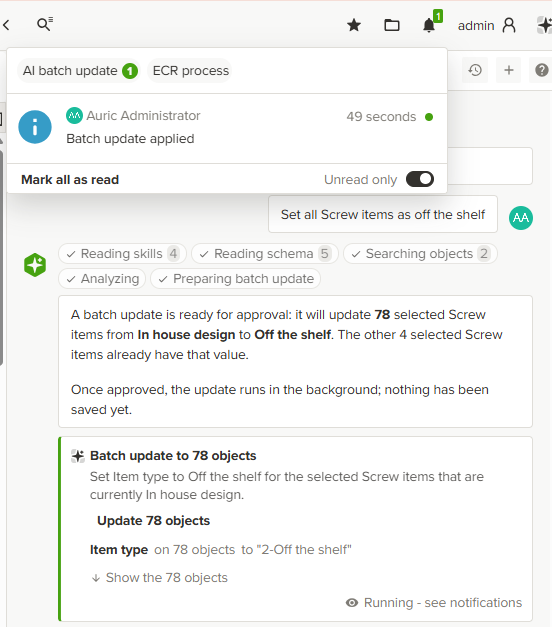
For a small number of items, you review each proposal individually. For larger batches, you review a grouped summary and the approved changes run in the background. Check the notifications panel for progress.
What the Assistant can do
You do not need to know the names of individual tools. Ask in natural language, and the Assistant selects an appropriate approach. In general, it can:
- Find information — search for items, open a specific item or its full structure, and inspect an attached image or drawing.
- Explain workflows — answer questions using Sovelia and organizational documentation and explain how your environment is configured.
- Propose changes — prepare edits, tags, comments, links, new items, revisions, or lifecycle transitions for your review.
- Create documents — generate a summary or report and save it to your Work files.
Using Skills
Skills teach the Assistant how your organization works, including its terminology, standard steps, and naming conventions.
- Some Skills come built in; others are written specifically for your organization by your administrator.
- To call a specific Skill directly, type / followed by the Skill name in the chat.
- Otherwise, the Assistant picks a suitable Skill automatically when one fits your request.
Working with files through the Assistant
You can upload a file in the chat and ask the Assistant to read it, describe an embedded image, attach the file to an object, or replace an existing file.
- Attach a file in the chat, the same way you would in any messaging app.
- Ask the Assistant to read a document (PDF, Word, Excel, and similar) and answer questions about it.
- Ask it to attach that file to a new or existing item, or replace the file currently on one.
- Ask it to create a summary or report. The Assistant saves the result as a new file in your Work files.
Data and privacy in plain language
- If your organization uses an external AI service, your question and the Assistant's response may be sent to that service. Ask your administrator which provider is in use.
- Your organization decides which internal documents the Assistant can use. It draws only on content that has been explicitly made available.
- Feedback submitted through the thumbs-up and thumbs-down controls helps improve the Assistant over time and is not tied to your identity.
 As with any AI tool, avoid entering sensitive information that should not be stored or processed by the configured provider.
Who should I contact if something seems wrong? Contact your usual Sovelia support contact; there is no separate support channel for AI-related issues.